Live Sport for Phones: 9:16 Streams with AWS Elemental Inference
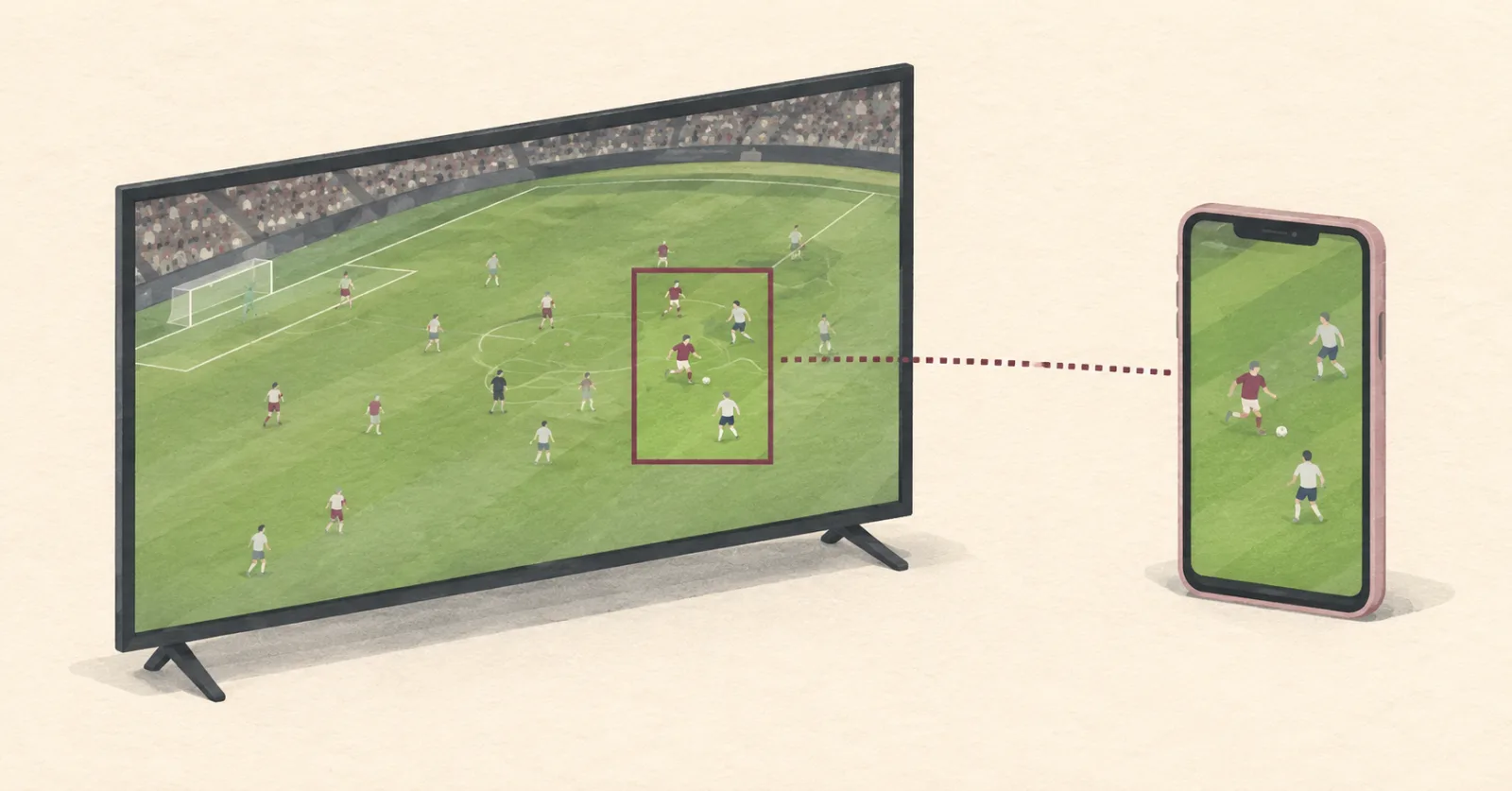
Sit down to watch a whole match on your phone and you’ll turn it sideways. But a lot of live sport reaches people when they aren’t sitting down for it: a stream that turns up while they scroll short videos, a few minutes on a train with the phone in one hand, a live chat running under the picture. Nobody rotates for those, so the wide picture shrinks to a strip across the middle of the screen. Cropping to wherever the ball is fixes that, but somebody has to decide where the ball is, and for a live match that has usually meant a person with a joystick, or nobody at all.
So when AWS Elemental Inference went generally available in February 2026, I got curious fast. It watches a live stream, works out where the action is (for football, the ball and the players around it), and tells MediaLiveAWS Elemental MediaLive, AWS’s live video encoder. It takes a live stream in and writes out the versions viewers actually watch. where to crop. That’s the joystick person, as a service. AWS’s walkthrough clicks through the console, but I wanted my code to do it for every stream, with one rule: the upright 9:16The shape of a phone held upright: 9 units wide for every 16 tall. A TV picture is 16:9, the same shape lying on its side. copy is a bonus, and nothing about it is ever allowed to break the 16:9 everyone else is watching.
One field does the cropping
Every stream already got its own MediaLive channelIn MediaLive, one encoder set up for one live stream. It reads the stream in and writes every copy you asked for., which wrote a 16:9 HLSHTTP Live Streaming, the format most phones and browsers play. The video is cut into short chunks, and a playlist file tells the player which chunk comes next. playlist to S3. A channel can write its input out more than once, so I left the 16:9 alone and added an upright copy beside it.
I was half expecting a whole new API. Instead, the feature hangs on one setting, ScalingBehavior. Set it to SMART_CROP, give the copy an upright size, and MediaLive stops shrinking the whole frame and crops wherever Elemental Inference points. That’s smart cropAn Elemental Inference feature that cuts a narrow window out of a wide picture and keeps moving it to follow the action, so a 16:9 match can become a 9:16 one., and the rest of the copy is a short list:
| Setting | Value |
|---|---|
| Crop mode | SMART_CROP |
| Size | 1080 × 1920 |
| Video | H.264 at 6 Mbps |
| Sound | Shared with the 16:9 |
| Chunks | 4 seconds each |
| Saved to | Its own 9x16/ folder |
The last row keeps the rule, because the 16:9’s path never moves:
s3://<bucket>/<stream>/index.m3u8        the 16:9, unchanged
s3://<bucket>/<stream>/9x16/index.m3u8   the 9:16, new
Then I wrote the test I cared about most: build the channel’s settings with and without the 9:16, and check that the 16:9 part comes out identical.
The feed that watches the match
MediaLive now knew how to crop, but nothing was telling it where the ball was. That’s the job of an Elemental Inference feedIn AWS Elemental Inference, the thing that watches one live stream and runs whichever features you switch on, such as smart crop or event clipping.. A feed watches one stream and runs whichever features you switch on: smart crop, event clippingAn Elemental Inference feature that spots key moments in a live match, such as goals, and reports when each one starts and ends, so highlight clips can be cut from them. (which spots goals), or both.
I went looking for the call that links the feed to the channel and found I didn’t need one. MediaLive links them itself when the channel is saved, using my code’s AWS permissions, so those still need AssociateFeed, DisassociateFeed and UpdateFeed even though my code never calls them. The requirements page lists the full set.
Creating the feed was where I slowed down, because the docs disagree. The CLI guide says to create it with nothing switched on and let MediaLive add smart crop itself, and the CreateFeed API reference says a feed needs at least one feature from the start. The console guide settled it: MediaLive uses smart crop if it’s already on, and adds it if it isn’t. So my feeds start with smart crop switched on. Streams that already have a feed for event clipping share that one instead, though I haven’t tested that path on dev yet.
Two slots, and a third match
Once everything worked, I started asking what happens when it doesn’t, and Elemental Inference hands you a very small number. It limits how many feeds can run at once (1 or 2 per account and region by default), and everything shares it, even MediaConvertAWS Elemental MediaConvert, AWS’s service for converting finished video files. MediaLive does the same job for live streams. jobs that smart-crop finished files. My dev account has two. So AWS was going to say no sooner or later, and my rule said a no could cost the 9:16 but never the match.
So every refusal steps down one level. First the code asks for the 16:9, the 9:16 and the feed together. If AWS refuses, it asks again without the 9:16, keeping event clipping if the stream has it. If that fails too, it deletes the feed and starts the plain 16:9 channel it always made. The stream gets back either the 9:16 playlist or a reason, so the app never shows a player that won’t load.
I wanted to see AWS say no for real, so with two 9:16 copies running I started a third. AWS refused the channel with an HTTP 409, the code dropped the 9:16 and gave its reason, and the 16:9 started recording as if nothing had happened. Honestly, that was the moment I trusted the whole thing.
After the final whistle
Those two slots made me careful at the end too, because a feed that outlives its channel keeps its slot. So the code deletes the channel, waits until MediaLive confirms it’s gone, and only then deletes the feed, after checking that the feed’s labels name this stream. Two matches can overlap, and one finishing shouldn’t take the other’s feed with it.
What it looks like on a phone
The first time I opened the 9:16 playlist, it stayed on the ball, where the joystick person would have kept it. The picture wasn’t as sharp as the 16:9, though, and the numbers explain why: a 9:16 window cut from a 1920 by 1080 frame is only about 608 pixels wide, so the 1080 by 1920 copy is that narrow window stretched up. It also only really handles a few sports. On anything else, it’s bad. And one start took 3 minutes 20 seconds to come up, which is a long time to stare at a blank player.
So a 9:16 copy is now one switch on a live stream, and leaving it off changes nothing about the 16:9. For the sports it handles, the person on the train at the start of this post, who was never going to turn their phone sideways, finally gets the ball in the middle of the screen.
Smart crop works on finished files too, through MediaConvert, and that’s where part 2 picks up.